
Are you dreaming of a perfect kitchen that blends functionality with style? Imagine having a space that not only meets your culinary needs but also enhances the aesthetic appeal of your home.
If you’ve ever wondered how to bring your kitchen design ideas to life, you’re in the right place. With AutoCAD, you can transform your vision into a detailed and precise plan. This powerful tool lets you design every corner of your kitchen with accuracy, ensuring that your dream kitchen is both beautiful and practical.
Whether you’re a seasoned designer or a DIY enthusiast, learning how to draw kitchen designs in AutoCAD can open up a world of possibilities. Dive into this guide to discover step-by-step instructions and tips that will make your kitchen design process smooth and enjoyable. Your dream kitchen is just a few clicks away!
Getting Started With Autocad
Starting a kitchen design project in AutoCAD can feel daunting. But it doesn't have to be. This step-by-step guide will ease your journey. You'll soon draw like a pro. Let's dive into the basics of AutoCAD. You'll learn how to set up your workspace. Understand essential tools and commands. Ready to get started?
Setting Up The Workspace
First, launch AutoCAD on your computer. You'll see the default interface. This is your workspace. Customize it to fit your needs. Click on the 'Workspace' drop-down menu. Choose 'Drafting & Annotation' for kitchen design. It provides all the necessary tools. Adjust the grid settings under the 'View' tab. This helps in aligning your design elements. Use the 'Units' command to set dimensions. Choose millimeters or inches, based on your preference. A well-organized workspace boosts productivity.
Essential Tools And Commands
Familiarize yourself with essential tools. The 'Line' command draws straight lines. Use it to outline kitchen cabinets. The 'Rectangle' tool creates rectangular shapes. Perfect for designing countertops. 'Circle' helps in drawing round objects, like knobs. Use 'Trim' and 'Extend' to adjust line lengths. The 'Mirror' command creates symmetrical designs. Handy for balanced kitchen layouts. Don’t forget the 'Undo' command. Mistakes happen, and this tool is a lifesaver. Practice these commands regularly. Your efficiency will improve with time.

Credit: www.youtube.com
Planning The Kitchen Layout
Creating a kitchen layout in AutoCAD starts with precise measurements and clear design ideas. Utilize AutoCAD tools to sketch cabinets, appliances, and workspaces efficiently. Adjust dimensions and placements for optimal functionality and aesthetics.
Planning the kitchen layout is a crucial step in designing your dream kitchen using AutoCAD. It sets the foundation for a space that is both functional and aesthetically pleasing. Imagine walking into your kitchen where everything is strategically placed, making cooking and cleaning a breeze. You can achieve this by focusing on measuring the space and defining zones and workflows, ensuring your kitchen serves your needs perfectly.
Measuring The Space
Before diving into any design details, grab a measuring tape and start with the basics. Measure every nook and cranny of your kitchen area. Accurate measurements are your best friend in preventing design mishaps. Consider the ceiling height, window placements, and existing plumbing or electrical outlets. These elements will impact where you can place appliances and cabinetry. You'll want your measurements as precise as possible to ensure everything fits perfectly. What if your kitchen space is oddly shaped or has features like columns? Don't stress! These can become focal points in your design. Use AutoCAD to create a digital representation that reflects your unique space. This will help you visualize how everything will look before making any commitments.
Defining Zones And Workflows
Start by identifying the key zones in your kitchen. These typically include the cooking area, cleaning area, and storage. Each zone should be easily accessible and logically placed. Consider the "work triangle" concept, which connects the refrigerator, stove, and sink. This triangle should be compact but not cramped, allowing you to move efficiently between tasks. Think about your daily routine. Do you often find yourself cooking in a rush or preparing elaborate meals? Tailor your zones to match your lifestyle. Place frequently used items within easy reach, and ensure there's enough counter space for food prep. What if you enjoy entertaining guests while cooking? You might want to incorporate a seating area or an open design that allows interaction with guests. By planning these zones meticulously, you can create a kitchen that’s both practical and enjoyable to use. Planning your kitchen layout in AutoCAD allows you to visualize and fine-tune your design before any physical changes are made. With careful measurement and thoughtful zoning, you can craft a kitchen that's not only a joy to look at but also a joy to use.
Creating The Floor Plan
Creating a floor plan for kitchen design in AutoCAD involves precise measurements and careful layout planning. Start by sketching the room's dimensions, including walls, windows, and doors. Place appliances and cabinets thoughtfully to maximize space and functionality.
Creating a floor plan is the first step in designing a kitchen in AutoCAD. It's like setting the stage for a culinary masterpiece. You lay out the boundaries, defining your space where flavors will dance. A well-thought-out floor plan simplifies the entire design process. It helps you visualize the placement of appliances, cabinets, and workspaces. With AutoCAD, precision becomes your ally.
Drawing Walls And Partitions
Start by drawing the outer walls of your kitchen. Use simple lines to mark the boundaries. Make sure the measurements are accurate; this sets the foundation for everything else. Consider the partitions that might divide your kitchen from the dining area or pantry. These partitions can be drawn as additional lines. Pay attention to the thickness, which can impact the space. Have you ever walked into a kitchen that felt cramped? Proper wall placement can prevent this. Ensure your design provides ample room for movement.
Incorporating Doors And Windows
Doors and windows aren't just functional; they add character to your kitchen. Begin by placing the main entrance. Choose a location that offers easy access to the rest of the house. Think about where natural light can flood in. Adding windows in strategic spots can brighten your cooking area. Use AutoCAD's tools to position them accurately. Consider the flow of movement. Will the door swing into a busy area? Ensure your layout prevents unnecessary obstacles. A seamless flow invites more creativity when you're cooking. Your kitchen design in AutoCAD can transform how you experience the heart of your home. Are you ready to bring your culinary dreams to life with the perfect floor plan?
Designing Cabinets And Storage
Creating a functional kitchen design in AutoCAD involves precise planning. Cabinets and storage play a crucial role in this design. They define the kitchen’s functionality and style. Proper planning ensures efficient use of space. It also enhances the kitchen’s aesthetic appeal. Let’s delve into designing cabinets and storage solutions using AutoCAD.
Customizing Cabinet Dimensions
Customizing cabinet dimensions in AutoCAD offers flexibility. Start by measuring your kitchen space accurately. Use these measurements to plan your cabinet layout. Consider the height, depth, and width of each cabinet. Adjust these dimensions to suit your kitchen needs. This customization helps in maximizing storage space. It also ensures a seamless fit in your kitchen design.
Utilize AutoCAD’s tools to visualize cabinet designs. Draw different shapes and sizes to see what fits best. Modify these designs easily to achieve your desired look. This process allows for unique and personalized cabinet styles. Remember, proper cabinet dimensions enhance both function and aesthetics.
Integrating Storage Solutions
Integrating storage solutions is essential in kitchen design. AutoCAD helps in planning efficient storage options. Consider pull-out shelves and deep drawers for easy access. These features make storing kitchen essentials effortless. Add overhead cabinets for additional storage space. This approach keeps your kitchen organized and clutter-free.
Plan for specialized storage solutions like spice racks and wine holders. Use AutoCAD to map out their placement in your design. This integration optimizes kitchen space while adding convenience. Aim for a balance between storage capacity and accessibility. Thoughtful storage solutions enhance your kitchen’s functionality and style.
Placing Appliances And Fixtures
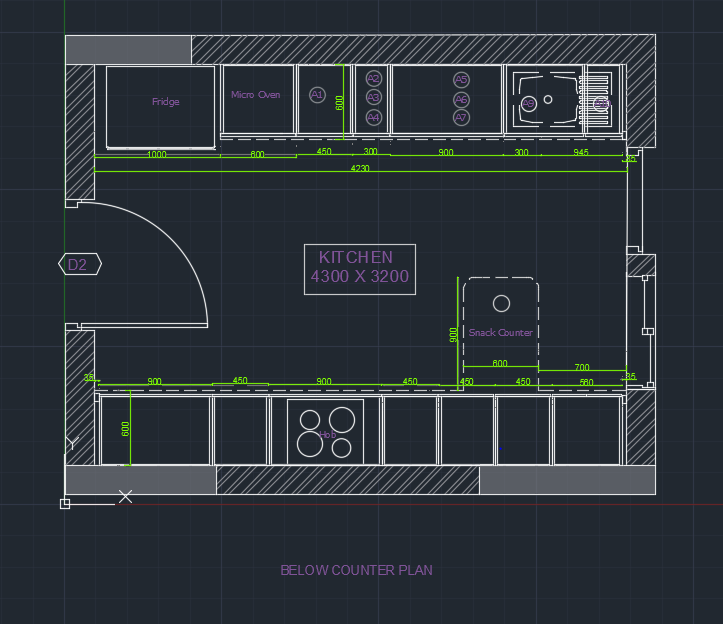
Designing a kitchen in AutoCAD involves strategic placement of appliances and fixtures. Ensure efficient workflow by positioning the stove, refrigerator, and sink in a triangular layout. This arrangement minimizes movement and maximizes functionality in your kitchen design.
Designing a kitchen in AutoCAD is an exciting task that can transform your space into a functional and beautiful area. One of the most crucial steps in the process is placing appliances and fixtures. This requires a keen eye for detail and a clear understanding of how each element interacts with the rest of the kitchen. Placing your kitchen elements efficiently can enhance workflow and maximize space, making your kitchen not just a place for cooking, but a hub for family gatherings and creativity.
Selecting Appliance Layout
Choosing the right layout for your appliances is essential. Begin by identifying the most frequently used appliances and their importance in your daily routine. Think about how you move around the kitchen. Do you prefer the stove close to the sink, or do you need a prep area in between? Create a layout that matches your cooking style and daily habits. You might want to keep the refrigerator near the entrance for easy access or the oven at a safe distance from high-traffic zones. Remember, the goal is to reduce unnecessary movement and make cooking a more enjoyable experience.
Positioning Sinks And Faucets
Sinks and faucets are the heart of the kitchen’s workflow. Position your sink where it can serve multiple functions without obstructing movement. Often, placing it near a window or in an island can be both functional and aesthetically pleasing. Consider the plumbing requirements and the proximity to other appliances like the dishwasher. This reduces the hassle of moving wet dishes across the kitchen. Have you thought about the height and reach of your faucet? Ensuring it's convenient for all family members can be a game-changer in daily kitchen tasks. As you embark on designing your kitchen in AutoCAD, remember that every decision impacts not just functionality, but also the atmosphere of the space. What are the key elements you want to prioritize in your kitchen design? By focusing on practical layout and thoughtful placement, your kitchen can become a seamless extension of your lifestyle.
Credit: skill-lync.com
Adding Lighting Elements
Incorporate lighting elements in your AutoCAD kitchen design to enhance functionality. Place lights over work areas and add under-cabinet lighting for improved visibility. Highlight specific zones to create an inviting space.
Adding lighting elements to your kitchen design in AutoCAD can transform the space from mundane to magnificent. The right lighting not only enhances functionality but also elevates the aesthetic appeal of the kitchen. Whether you're planning a sleek modern kitchen or a cozy rustic space, understanding how to add lighting elements effectively is crucial.
Choosing Light Fixtures
Choosing the right light fixtures can feel overwhelming with so many options available. Start by considering the kitchen's overall style. For a contemporary look, sleek pendant lights or recessed lighting might be perfect. On the other hand, vintage chandeliers could add charm to a classic kitchen design. Think about how the light fixtures will interact with other elements. For instance, pendant lights can beautifully highlight an island or dining area. Also, explore energy-efficient options like LED fixtures that can reduce energy costs and offer a longer lifespan.
Ensuring Adequate Illumination
Ensuring adequate illumination is vital for both functionality and ambiance in the kitchen. Start by assessing the natural light available in the space. Use AutoCAD to simulate different lighting scenarios, which can help in determining the best placements for fixtures. Consider task lighting for areas like countertops and stove tops where precision is essential. You might also want to add accent lighting to showcase architectural details or cabinetry. Balancing different lighting layers can make the kitchen both practical and inviting. Have you ever walked into a kitchen and felt like something was missing? Often, it’s due to inadequate lighting. Take a moment to visualize your kitchen at different times of the day. This will guide you in creating a well-lit space that works for every occasion.
Incorporating Materials And Textures
Drawing kitchen designs in AutoCAD involves adding diverse materials and textures. Use wood, metal, and glass textures for cabinets and countertops. Experiment with tile patterns on floors and walls to create a realistic kitchen layout.
Creating a kitchen design in AutoCAD can be a rewarding experience, allowing you to bring your creative vision to life. A crucial part of this process involves selecting the right materials and textures. These elements can elevate your design from basic to stunning by adding depth and realism. Whether you’re a seasoned designer or a newcomer, understanding how to effectively apply materials and textures is key to a successful kitchen design.
Applying Surface Finishes
Surface finishes can transform your kitchen design, making it visually appealing and functional. Start by considering the materials you want to use for countertops, cabinetry, and floors. Think about how glossy surfaces can reflect light, while matte finishes offer a more subdued appearance. Use AutoCAD's material library to experiment with different finishes. Try out various options like marble, wood, or stainless steel. Each material comes with its unique properties, influencing the overall feel of your kitchen design. Don't be afraid to mix and match. A combination of different finishes can add character and define different areas of the kitchen. Visualize how each material will complement or contrast with others in your design.
Using Textures For Realism
Textures bring your kitchen design to life by adding a layer of realism. Think about how textures like brick, tile, or wood grain can enhance your design. They add depth and can evoke a specific style or mood. In AutoCAD, you can apply textures to surfaces to make your design more realistic. Use the software's features to adjust the scale and orientation of textures. This ensures they align perfectly with your design elements. Consider how textures interact with light and shadow. This interaction can create dramatic effects, highlighting features and adding interest. Use textures strategically to draw attention to focal points in your kitchen design. Have you ever wondered how a simple texture change could transform a space? Experimenting with textures might lead to surprising results, revealing new possibilities for your kitchen design. Embrace the chance to explore different textures and discover what works best for your vision.

Credit: www.researchgate.net
Finalizing The Design
Finalizing the design in AutoCAD helps create precise kitchen layouts. Ensure accurate measurements and select suitable materials. Refine details like cabinet positions and appliance placements for functionality.
Finalizing the design in AutoCAD ensures a flawless kitchen plan. It's where your vision becomes a reality. This step is crucial for a functional and aesthetic kitchen. You ensure every detail aligns with your initial concept. Attention to detail now prevents costly changes later.
Reviewing And Refining Details
Scrutinize every element of your kitchen design. Check the placement of appliances and fixtures. Ensure that cabinets and counters fit the layout. Verify that measurements are precise. Adjust dimensions for optimal space utilization. Make sure pathways are clear for movement. Verify that electrical and plumbing points are correct. Each detail needs careful attention. Refine your design for a smooth workflow. Confirm that all elements reflect your vision.
Exporting And Printing Plans
Prepare your final design for export. Choose the correct file format for sharing. PDF is a popular choice for easy viewing. Ensure all layers and details are visible. Double-check the scale for accurate printing. Use high-quality settings for clear prints. Print your plans for physical review. A tangible copy aids in visualizing the space. Share the plans with contractors or designers. Ensure everyone is on the same page.
Troubleshooting Common Issues
Encountering issues with AutoCAD kitchen designs? Identify common problems like scaling and layering. Ensure proper dimensions and layer management for seamless kitchen layouts.
Creating a kitchen design in AutoCAD can be incredibly rewarding, but it's not without its challenges. You might find yourself facing a range of issues that can hinder your progress. Understanding and troubleshooting these common problems will make your design process smoother and more efficient.
Resolving Dimension Errors
Dimension errors in AutoCAD can be frustrating. They often arise from inaccuracies in your measurements or misalignment between different elements. Double-check your initial measurements and ensure that your scale is consistent throughout the design. If you find that dimensions don't match your expectations, use AutoCAD's dimension tools to recalibrate and adjust them. Pay attention to snapping features—these can help align elements precisely. Have you ever noticed that a small oversight in measurement can snowball into bigger design issues? Careful attention at this stage saves headaches later.
Addressing Layout Conflicts
Layout conflicts occur when elements overlap or don't fit as intended. These can disrupt the flow of your kitchen design. Start by reviewing your initial layout and identifying areas where conflicts might occur. Utilize AutoCAD's layer management and visibility options to isolate and adjust problematic areas. Consider alternative arrangements or resizing elements to achieve a harmonious design. Have you ever tried to fit too much into a small space, only to realize it hinders functionality? Sometimes less is more when it comes to effective kitchen layouts. By addressing these common issues methodically, you'll enhance your AutoCAD skills and create a kitchen design that's both beautiful and practical. Remember, every challenge is a stepping stone to mastery.
Frequently Asked Questions
What Is Autocad Used For In Kitchen Design?
AutoCAD is used for creating precise kitchen layouts and designs. It helps in visualizing the space efficiently. Designers can draft detailed plans, including cabinetry, appliances, and fixtures. This ensures accurate dimensions and placements, optimizing functionality and aesthetics. AutoCAD simplifies revisions and enhances communication with clients and contractors.
How Do You Start A Kitchen Design In Autocad?
Begin by setting up the workspace with accurate dimensions. Create layers for different elements like walls, appliances, and cabinetry. Use AutoCAD tools to draw the kitchen layout. Ensure to include plumbing and electrical plans. Double-check measurements to avoid errors. Save your design regularly to prevent data loss.
Can Autocad Simulate Kitchen Lighting?
Yes, AutoCAD can simulate kitchen lighting. Use the lighting tools available in the software. They help in visualizing how natural and artificial light affects the space. Adjust light sources to enhance the design’s ambiance and functionality. This assists in making informed decisions about lighting fixtures and placements.
How Do You Add Appliances In Autocad?
To add appliances, use AutoCAD blocks representing different kitchen items. These blocks can be scaled to fit the design. Place them accurately within the layout considering space constraints. Ensure to check dimensions against real appliances for accuracy. This helps in creating a realistic and functional kitchen design.
Conclusion
Creating kitchen designs in AutoCAD is now within reach. Use these steps to start your project. Begin with clear goals and measurements. Then, dive into the drawing. Play with different layouts. Experiment with colors and textures. Check your design for errors.
Adjust as needed. Practice makes perfect. Share your creations with friends or online communities. Get feedback to improve. Designing in AutoCAD is fun and rewarding. You can create spaces that inspire cooking and gathering. Your kitchen can be a place of joy and creativity.
Keep learning and exploring new design ideas.